Time seletor, filters, pre-filtering
Selecting a date

To optimize the data visualisation, it is strongly recommended to select a time lapse. This will limit the data downloaded between the start and end date you choose.
1. To select a date, click on the time selector on top of the location history screen :
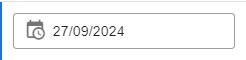
2. By default, the time lapse is the current day. By clicking on the start / end time selector, you can choose any time of the day.
Tag list filtering by text
This image shows that only tags containing "04:a3:16:02:" is returned. Tags are filtering by tracking id.
Note that filtering tag with search field does not not guarantee that this tag will have history position.
Prefiltering tag list that contains history records
To make sure you will find history position and/or records for a tag, we can prefilter the list. Here is to do so :
1. Select a filter (property type)
2. Select a filter value
3. The button "search" should be now enabled. Clicking on it will check all tags that have records that match this selection.
4. As shown in the image below, no tag match the filter : "the 27/09/2024 between 4AM - 12PM that has value "Specialty - value X"
5. The  button reset the filter selection, while the
  button refresh the tags list.
Note that only filter configured with "show as filter" will be displayed as the image below. If you don't see any filter, go to property type page to activate the option.
Related Articles
Saved filters
Overview The Filters page allows you to create, manage, and organize saved filter combinations for quick access throughout the application. Saved filters help you quickly find specific groups of trackables based on property values. Access: ...Location page
Overview The Locations page provides real-time tracking and monitoring of all trackables on an interactive map. It combines live location updates, filtering capabilities, and issue/alert management in a unified interface. Access: Applications > [Your ...Overview
What is Location History? Location History allows you to view and download past location data for assets. You can see where devices were at specific times and export data for analysis. Access: Applications > [Your Application] > Location History URL: ...History data manipulation
Current position selector The icon represent the current selected position on the map, that can slide from a position to another. You can move the current position by sliding the selector (2) on the time slider, updating the position's date value as ...Journey Tracking
Overview Monitor all active workflows in real-time. See which assets are in progress, completed, or delayed. Access: NAO Flow > Journey Tracking Understanding the Display The Table Each row shows one workflow with its steps displayed from left to ...